Showing posts with label Microsoft. Show all posts

Wednesday, July 20, 2016

Security for the Masses

Not long ago I was talking to my mom a little about what I do. I explained to her the intricacies of implementing solutions, securing large organizations, and some of the overall struggles we face day to day. After this conversation she came to me and said that I should write something about how the average person should be mindful and protect themselves day to day on the internet and on their computers. While this won’t be super technical content, I do hope that it will be an article you can share with your family members, friends, and coworkers on how to better keep themselves protected.
This is going to be a sort of laundry list of ways that the average computer user can better secure their life day to day. Being in the information security industry, I see super scary hacks and ways that bad attackers can take advantage of everyone. While I won’t go into what all of the scary things are, I’ll list the top 5 categories that will give the biggest bang for your buck.

Password Security

    Password security can be difficult depending on how you handle it. You have a hundred things that you need to use passwords for, there is no way that you’ll be able to remember them all, right? Wrong! That’s something that we all have to deal with in this day and age. There is a type of software called a password manager that you can install. This software will allow you to have a strong, unique password for each website or service that you use, without you having to remember it. It is securely stored in the application, and the only password you will need to remember, is for the application itself. A few reputable password managers include, KeePass, LastPass, PasswordSafe, and 1Password.
    You also should remember not to trust others with your password. Not only people, but never ever save your passwords in your internet browser. It is very easy for malware or viruses to steal that information.
    Since you’ll be using a password manager now, make sure your passwords are strong. An 8 character password will take anywhere from 30 seconds to 24 hours to crack with a free piece of software from the internet. At least for your important accounts (banking, amazon, ebay, paypal, anything connected to something money related) you should use a 10 character passphrase. Doing this correctly will make your password almost impossible to crack. One way of making secure passwords easier to remember is using phrases from books, songs, expressions, etc, and substituting characters. The phrase

    “You Are My Sunshine” == You@reMySunsh!n3. 

    This passphrase would take over several hundred years to crack because it contains a 10 character string with upper & lower case letters, a number, and a symbol. Here are the top passwords from 2015 that you should never use:


Enable Multi-Factor Authentication/MFA (or Two-Factor Authentication/2FA) on sensitive accounts

    2FA takes your login and password for a website or service and gives you a very high increase in protection. Many banks provide it as an option, as well as Facebook, Twitter, other popular social media accounts, Gmail, etc. 2FA adds another step in the form of a PIN or code to your login process by either texting it to your cell phone, emailing it, using an application such as Google Authenticator or Duo Security, or a physical device such as a key fob or token generator.
    On the website https://twofactorauth.org/ you can search for services and it will list who does and doesn’t offer it as a service. More than likely you will be able to find your 2FA setup in your account security properties on each individual site.


Learn to be suspicious

    You should be suspicious of any email, link, popup, or phone call that tries to create a sense of urgency. There are scammers out there everywhere. Many times they try to specifically target residents of retirement villages, but most will try their tactics on anyone. They come in many forms and here are a few:
  • A fake email (called phishing) that may look exactly like a service that you use. These emails are very easily created and are attempting to direct you to a malicious website or infect your computer. If you have concerns from an email, never click on a link directly in it. Instead open up the website in a browser and type in the address manually. If there is any problem with your account you can either find it there, or call the company directly.
  • A pop-up telling you that you have a virus or system slowness, and clicking *here* will fix everything. Do not click on it! It’s a malicious ad or pop-up on a potentially infected website that is trying to spread the infection or steal your information.
  • A phone call from “Microsoft”, ”Dell”, or another well known company asking for access to your computer. No one, ever, at any point in time, will call you at home to request access to your computer or information from you. If at any point in time you believe that it is a legitimate request, get their name and call back number. Don’t actually call them back at that number, but look up the service that you use, whether it be financial, medical, or otherwise and call that number instead to inquire about your possible account issues.

Perform Routine Maintenance

    Perform routine maintenance, such as updating your anti-virus (don’t let the renewal pass), and running anti-malware software monthly. There are several anti-spyware and anti-malware companies that are reputable. Download the software directly from their website and not from an ad elsewhere. www.Malwarebytes.org is a great piece of software that will find and remove security risks from your computer. Update and run Malwarebytes once a month, and remove everything it finds. There is a free and paid version.
    More than likely you are running a Microsoft Operating system of some type. You should always apply updates monthly. There are going to be many other pieces of software on your computer that you should keep up to date as well. Things like Adobe Reader, Firefox, Chrome, etc that will have constant security bugs that need fixed. A free piece of software called Secunia (www.secunia.com) will let you know what pieces of software are vulnerable to an attacker. Also, please, if you’re reading this and have Windows XP you need to do everything in your power to get onto a newer operating system. Just trust me.

Protect your browsing

There are a large amount of websites out on the internet that are infected, compromised, or  just plain bad news. Here are a few things you can do to mitigate this:

  • Use a web browser other than Internet Explorer (IE). www.google.com/chrome or www.getfirefox.com are both exceptional browsers that have the ability to be more secure than the default IE.
  • Install extensions on your new browser. Two extensions specifically, one named Ad-blockerPlus and another called No-Script, will turn off a large portion of very bad things displayed on websites.


I hope that all of the above tips can be something that you would handout to the circle of people that you know. Security is everyone’s responsibility and the more we all work towards a common goal, the safer we all become!

Friday, August 14, 2015

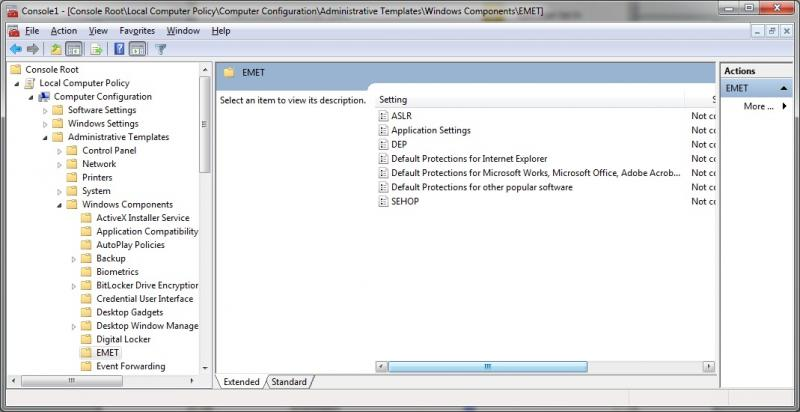
EMET and You

So first thing’s first. A little explanation of the Enhanced Mitigation Experience Toolkit (EMET) from Microsoft straight from their website:

What is the Enhanced Mitigation Experience Toolkit?
The Enhanced Mitigation Experience Toolkit (EMET) is a utility that helps prevent vulnerabilities in software from being successfully exploited. EMET achieves this goal by using security mitigation technologies. These technologies function as special protections and obstacles that an exploit author must defeat to exploit software vulnerabilities. These security mitigation technologies do not guarantee that vulnerabilities cannot be exploited. However, they work to make exploitation as difficult as possible to perform.

EMET also provides a configurable SSL/TLS certificate pinning feature that is called Certificate Trust. This feature is intended to detect (and stop, with EMET 5.0) man-in-the-middle attacks that are leveraging the public key infrastructure (PKI).


EMET is free, it’s a great tool from Microsoft, and you can go the manual route for installation, or head over to the TrustedSec blog for a post on how to automate it: https://www.trustedsec.com/november-2014/emet-5-1-installation-guide/


A great team member and friend of mine worked closely with me when implementing this technology across approximately 1,500 end devices including Windows 2008 and above, and Windows XP and above. Due to the sensitive nature of our applications, many of which were not stable or secure builds, we opted to perform the installs on our server platforms manually. We worked through a list of about 300 servers performing anywhere from 5-10 installs daily. As we were going through a PC refresh and upgrading everything to Windows 7 at the time we decided to install EMET on our base images after having our application team test the end user software.

From our experiences we encountered few issues, which were easily solved by adding exceptions into our Group Policy.


Here is a list of some of the issues that we had encountered. While obviously not a comprehensive one, it will give you an idea of some of the more common pieces of software that we had seen issues with.


  • EMET with EAF battles Adobe Reader (All versions)
  • There is a known issue with EMET’s caller mitigation in Chromium since v34 (http://www.chromium.org/Home/chromium-security/chromium-and-emet).  Microsoft and the devs both say that there is no benefit to leaving EMET Caller mitigation turned on for chrome.exe.  They also recommend turning off SEHOP mitigation for chrome.
  • Msaccess.exe has to be allowed in both DEP and Caller.
  • Photoshop.exe has to be allowed in DEP.


With this tool the benefits greatly outweigh the administrative overhead. With a well thought out deployment and the Group Policy to control it. EMET is the icing on your security cake.

Thursday, May 21, 2015

Security Measures on a Budget - Part 4

Microsoft security, everyone’s favorite topic to poke fun at. For both the offense and the defense it is considered to be our job security, the bane of our existence, and sometimes an unobtainable goal. Whether we like it or not Windows Server and Desktop environments have their roots sunk deep into the infrastructure of the corporations and homes of the world. We must learn how to actively manage Windows environments without them getting away from us. How many of you can say that your home or work environment has completely removed depreciated operating systems? XP was end of life April 8th, 2014 and the extended support for Windows Server 2003 is coming up this July (https://support.microsoft.com/en-us/lifecycle/search/default.aspx). Just please do not tell me that you have anything prior than that on your network. I know there is a good chance that you do, just don’t tell me about it. It is scary enough some of the things that are out there on the internet. From old Windows 3.1 boxes, IP cameras, electrical control systems and more. HD Moore has a great talk about the scan of the internet that he performed over the whole year of 2012 and the data he collected on internet facing systems (https://youtu.be/VuYi7gVy3dI). Which includes a large amount of windows systems.
It is extremely hard to tell companies “Just patch/upgrade everything to where it needs to be”. I realize it is not just that simple. You may have business critical applications that only run on depreciated Operating Systems, the newest OS may not run on the hardware that you do not have it in the budget to replace, or maybe you just don’t have the time. Honestly most of these are just excuses in the mind of someone in information security. You are putting convenience, money, and time before protecting your critical assets. In an upcoming article I’ll cover asset and risk management is not something many do right, but it is one of the most important planning strategies that you can have.
Moving away from the obvious upgrades to current OS and software there are still many low cost or free enhancements that you can accomplish in Windows to create a more secure environment. Many can be accomplished via Group Policy (if you are in fact on an Active Directory Domain). Here are some links that I’ve always relied on and pointed others to for reference:

Best practices for GPOs (Group Policy Objects)
http://www.grouppolicy.biz/best-practices/
http://www.infoworld.com/article/2609578/security/the-10-windows-group-policy-settings-you-need-to-get-right.html
http://www.giac.org/paper/gsec/4138/group-policy-security-risks-practices/104227

Defend your Active Directory
https://youtu.be/uccM2xtE5SA - “Active Directory: Real Defense for Domain Admins”

Set local admin account passwords
http://blogs.technet.com/b/askpfeplat/archive/2014/05/19/how-to-automate-changing-the-local-administrator-password.aspx

Reduce the amount of people in Domain Admins. No one should be logging into their desktop as a domain admin. Ever. Period.

Fix everything listed here. Just do it
http://blog.spiderlabs.com/2013/09/top-five-ways-spiderlabs-got-domain-admin-on-your-internal-network.html

Implement EMET
Dave Kennedy has a great article on pushing it out domain wide. https://www.trustedsec.com/november-2014/emet-5-1-installation-guide/

Setup urlscan on IIS servers
http://www.iis.net/downloads/microsoft/urlscan

Setup bitlocker on laptops. 
This is a must if you have any chance of that laptop containing sensitive data that could be detrimental to your organization.

A few of these changes will cause growing pains as they are made, others not so much. Stronger password policies can cause the user populous to come after you with pitchforks if it’s not something that you have ever needed to change before. No cached credentials, windows firewall settings, and making changes to local system/service accounts can all create changes in process that not many people will be happy with. I’m not saying it’s easy, but these should all be a part of your overall security no matter how small or large your company happens to be.

Friday, November 21, 2014

Where to Start When Your Environment is Fucked

Lots of us have been there. You're new to an environment, they've hired you for infrastructure, security, networking, or some random odd analyst position. Whichever way it is, you come in and realize things aren't exactly where they need to be. After you get through the settling into your new desk and all the HR paperwork that keeps you busy for a full week you're ready to go. Some of you may be more proactive about this and might have gathered some intel about the company already. Which at least at that point you might get the gist that you're fucked before you even start. But honestly I love cleaning up a mess. You can't make it much worse, there is low hanging fruit a plenty, and it can be a thrill to actually get things working. Oh right! Wait! Are you on your way to compliance? Might as well throw good security practices at it and check off all the boxes on your way.

This isn't meant to be a full list, but will definitely get you started. I'll be making my personal recommendations of software, services and companies. I don't work for any of them, but I have my reasons for recommending them. If you ever have any questions, additions, or disagreements make sure to hit me up or leave a comment.

So let's start with the one you can do before starting, or hell even before applying.

1. Look for their IPs and/or domain on Shodan. It's kind of like googling your date before you go out. Except I'd rather fix and harden a thousand networks than try and change a man. If you end up seeing printers, xp workstations, telnet ports, sql servers and other horrifying things you can either run or ask for more money. You'll have your work cut out for you. I've had my issues using Shodan, but it's relatively cheap to buy credits. It seems that if you pay your searches will go through every time.

Now the rest of the steps I'll list may obviously vary depending on the state of the environment when you come into it. But I've found that (so far) going in this order yields decent results. Many people talk about how to get upper level management buy-in. My thought on this is that C-levels are still people too. Stop looking at them like they are rockstars or that they are out of touch with the company. There is no reason why you shouldn't just go and strike a conversation up with them about security and the importance of it. Of course try not to spout FUD all over the place when explaining it to them, but honestly security (or the lack of it) is scary!!!!

So what do you do when you get there?

1. Get buy-in - Not too difficult. Especially if you've found interesting things in your Shodan searching. Being able to tactfully let them know they are fucked is a good step. Don't stop there though. You had better have some good "what now" items to present them with as well. The other articles that I wrote about security on a budget are good places to start. I mean look at it from their perspective. Blue teaming is NOT their cash cow. Why should they spend money on security infrastructure if it doesn't improve their bottom line? Ooooh, but WAIT!! What happens when their revenue stream is compromised? Blue teaming is a huge component to cost avoidance.

2. Implement the free & easy stuff!!!
          - If you still need buy-in, download a trial of your favorite vulnerability scanner and scan all the things!!!! Giving a pretty report of lots of critical and high items on your list will help out tremendously as well.
          - Best practices for GPOs
http://www.grouppolicy.biz/best-practices/
http://www.infoworld.com/article/2609578/security/the-10-windows-group-policy-settings-you-need-to-get-right.html
http://www.giac.org/paper/gsec/4138/group-policy-security-risks-practices/104227
A lot of the changes will cause growing "groaning" pains as they are made. Like stronger password policies, no cached credentials, windows firewall settings, and making changes to local system/service accounts.
          -  Set local admin account passwords - http://blogs.technet.com/b/askpfeplat/archive/2014/05/19/how-to-automate-changing-the-local-administrator-password.aspx
          - Reduce the amount of people in Domain Admins. No one should be logging into their desktop as a domain admin. Ever. Period.
          - Fix everything listed here. Just do it.... http://blog.spiderlabs.com/2013/09/top-five-ways-spiderlabs-got-domain-admin-on-your-internal-network.html
          - Implement EMET - Dave Kennedy has a great article on pushing it out domain wide. https://www.trustedsec.com/november-2014/emet-5-1-installation-guide/
          - Disable telnet, logins over http, plain text passwords, open wi-fi, sslv3, no-shut ports that are unused, & setup port security.
          - Setup centralized logins for network devices. Use TACACS+ or radius
          - Setup urlscan on IIS servers http://www.iis.net/downloads/microsoft/urlscan
          - Setup bitlocker on laptops. This is a must if you have any chance of that laptop containing sensitive data that could be detrimental to your organization.
          - Network device configuration backups. Rancid works just as well as most of the paid ones. If you already have something that handles this then go for it and use that.
          - Install some pentesting flavor of linux and pop a box (obviously with written pre-approval). Yes this is a more advanced step and requires someone to sign off on it, but giving them their information on a white platter is another good step to gain some buy-in.
          - Patch your *nix boxes. If they were vulnerable to heartbleed (CVE-2014-0160) regenerate your SSL keys.

If this doesn't give you some sort of I.T. budget by now, I'm sorry. But if it does keep reading... well honestly I expect you to keep reading anyways... because I said so (in my mom voice).

3. Policies

Yea, I know.... NO ONE enjoys writing and creating policies. You have to talk to people and *shudder* collaborate. But you truly and honestly need them. Politics is a necessary evil and also there are several governing bodies that require certain policies. I am not a C-level anything by any means or even a management type person but it does take collaboration between the two to make policies that work and can be enforced.
          - http://www.sans.org/security-resources/policies/ TA DA - Take 'em and edit as you please. The SANS templates take the grunt work out of it and allow you to not spend all of your time trying to come up with the right way to say what you want to say.
          - Find out if you are required to comply to any governing body. PCI, SOX, GLB, etc. Checking boxes sucks, but it's got to be done.
          - Find out what is important to your organization. You need to make sure the right information is being protected.

4. Segmentation
          - For the love of God have a DMZ... BEHIND a firewall even. Have a firewall between that DMZ and the inside of your network also. Limit the amount of devices in your DMZ to devices that the internet needs access to. People and bots will be banging against these boxes and trying their best to get a foothold. Don't let that foothold be the end of your LAN.
          - Vlans and more vlans. While having seperate vlans is not a fool proof plan, it is part of the process. Having different silos for different purposes will help eventually for incident response, give you the capability to create ACLs between them, and if you are unfortunate enough to get a virus or botnet, it makes them less damaging.

6. Show me the $$$$$
          - Get a vulnerability scanner for realz. I am partial to Nessus. They also have just come out with PVS (Passive Vulnerability Scanner) that is pretty cool and gives you a real time view of what's going on over the wire.
          - Proper IDS/IPS/SIEM. I'm not too much of an expert on this. I've seen some implemented wonderfully and I've failed at implementing one before. I know it's needed but they need fine tuning and quite a bit of work to get them perfect. Make sure you are logging successful logins as well. If you see several failed and a successful (especially on off hours) that's a big blinky sign that you should catch.
          - Professional penetration testing. Hire a company the realizes the differences between a vulnerability assessment and a penetration test. I'm partial to TrustedSec, but Accuvant and Rapid7 are also both good companies as well.
          - Ideally all remote connections should require Two-factor. You should also follow the least-privilege rule with remote users. Check out Duo Security. It's a great company and they have some amazing support staff and engineers.

7. Extra stuff
          - If you need IP address management (IPAM) take a look at GestioIP. I've set it up and it works like a charm.
          - You had better not have your shared passwords stored in plain text. Get a password safe, or many. Free or paid they are worth it. If you're looking for enterprise level password safes, look at Thycotic (they have genius marketing as well)

Friday, November 29, 2013

Mapping drives with Group Policy to a DFS Target that is using ABE

This blog post is something that we'll be migrating towards to fix several annoyances that I have with our infrastructure. We have one giant clusterfuck of login scripts here. At a certain point someone thought it would be a great idea to give every AD user their own to map drives with and not standardize anything. We also have WAY too many file servers with user and department drives. Combination of clustered/standalone, physical/virtual, windows 2003/2008/2008R2. We'll be moving away from all of them to groups of DFS namespaces. I've created two servers DFS01 and DFS02. They will be housing the Depts DFS namespace on their E: drives. After all department drives have been moved over, we will also have a set for home drives, and certain areas that would need their own.

The Design:


Using the GPO over all of my users I entered in a drive mapping to the DFS namespace with Item-level targeting. We have many people that need access to more than one department drive, so why use up drive letters needlessly? When these department drives were mapped I didn't want anyone to see a department they either weren't a member of or didn't manage. The department drive will be the T: mapped drive for everyone, company wide, and the departments you need to view will show up based on what AD security group you are a member of. Everything will be setup for growth, using best practices. No more adding user accounts to shares and NTFS permissions, or file servers crashing and preventing logins for hours, or a 3TB clustered file server decide it wants to chkdsk in the middle of the day, should I go on? no? fine then.....

Setup:

  1. Install DFS - It's a Role Service under File Services. If you are unsure how to do this, google it, or wing it. It's not that bad.
  2. On the E: drive I created two folders "DFS" and "Shares". I've shared "Shares" as Shares$ with Authenticated Users having Read NTFS permission.

File Share Creation:

  1. Navigate to your "Shares" folder and create your first folder that you plan on mapping DFS to. In this example I have created a BusAnalysts folder that only has Admins and the DFS-BusAnalyst security group in AD as read/change for NTFS permissions. I'll also follow the same structure to create a CareMgmt folder to show that one will show up and the other won't later on when ABE has been finished.

Distributed File Servers and Access-Based Enumeration:

  1. Open up DFS Management
  2. Right-click on Namespaces and select "New Namespace"
  3. Enter the Name of your DFS Server, ours is listed as DFS-SERVER01, and in later screenshots is changed to a blurry spot DFS01.
  4. Now select your DFS name, ours will be "Depts".
  5. Select Edit Settings. The local path of the shared folder needs to point to the DFS folder that was created in step 2. The default points to the C: drive, and that's not what you want. The permissions will be set to the same (Everyone removed, & Authenticated Users = Read) under Customize. Click "OK">"OK">"Next".
  6. Select the defaults on the next screen and then "Next".
  7. Verify all the information is correct and click "Create" then "Close".
  8. Next we have to enable ABE. Right-click on your namespace go to Properties>Advanced and select "Enable access-based enumeration for this namespace" and "OK".
  9. Now create a new DFS Folder that will map to your shared sub-folder. The preview of the namespace should be pointed to where you specified in step 5, and will show up as a shortcut in that folder when you view it on the server. The folder targets should be pointing to the folder under Shares$. Click "OK".
  10. This is the part that pretty much eluded me for a week or so. I guess I just assumed ABE would pick up and do the right thing without any additional intervention.... WRONG!!   soooo Right-click on your newly created DFS folder and go to Properties>Advanced> and select the "Set explicit view permissions on the DFS folder" radio button. Add your specific DFS group to be able to see this DFS target, in this case it's DFS-BusAnalyst. I'll do the same thing for the CareMgmt folder as well as every other DFS folder that is added.

Group Policy Drive Mapping:


  1. In the proper GPO (where your users are located) navigate to User Configuration>Preferences>Windows Settings>Drive Maps to create a new drive mapping.
  2. The location will be the DFS target, in this case it's \\domain.local\depts, I've labeled it as "Department Drive", and I'm using the T: drive.
  3. Navigate to the Common tab and select "Item-level Targeting".
  4. Under "Targeting" we'll want a rule saying that it will apply to any user that is in a certain security group. Our naming convention will be DM(drive map)-ABCD(company name)-DFS-DEPT. So as long as you are in the DM-ABCD-DFS-DEPT you will have a T: drive mapped to //domain.local/depts when you login.


And we're done! On our way to becoming that much more organized :)


Wednesday, August 7, 2013

ldap on Apache to MS Active Directory


So I've recently struggled with ldap syntax in several different programs. Most recently I have setup viewvc on a Centos box to see config diffs easier in RANCID. After going around and around, knowing that I've done this in the past and struggled. I finally figured I should have a central repository for all the random things that I do and forget. So here it is. Part of my httpd.conf that allows for ldap to MS Active Directory.

I have yet to understand why some things have quotes and some don't....but it works...so whatever


<Directory "/var/www/cgi-bin">
    AllowOverride None
    Order allow,deny
    Allow from all
</Directory>

<Location "/">
    AuthType Basic
    AuthName "Whatever You Want Here"
    AuthBasicProvider ldap
    AuthzLDAPAuthoritative off
    AuthLDAPBindDN "CN=ldapuser,OU=Service Accounts,OU=IT,OU=Users,DC=domain,DC=local"
    AuthLDAPBindPassword "InsertPasswordHere"
    AuthLDAPURL "ldap://domain.local/OU=IT,OU=Users,DC=domain,DC=local?sAMAccountName?sub?(objectClass=*)"
    Require ldap-group CN=GroupNameHere,CN=Users,DC=domain,DC=local
</Location>